
Readability Matters: How to Test Fonts at Different Sizes Like a Pro
Readability Matters: How to Test Fonts at Different Sizes Like a Pro
Whether you’re designing for print, web, or mobile, one of the most overlooked aspects of typography is how readable your font remains at various sizes. What looks elegant at 48pt might become illegible at 10pt — and that could cost you audience attention, user experience, or even brand trust. In this article, we’ll guide you step-by-step on how to properly test the readability of your font across different sizes to ensure clarity, legibility, and performance.
1. Why Font Size Testing is Crucial

Fonts behave differently depending on weight, contrast, spacing, and screen type. Just because a font technically works doesn’t mean it’s comfortable to read. Proper testing ensures:
- Clarity on all screens (mobile, desktop, tablet)
- Consistency in branding
- Accessibility for visually impaired users
- Professional presentation in any medium
2. Set Up a Font Size Testing Chart
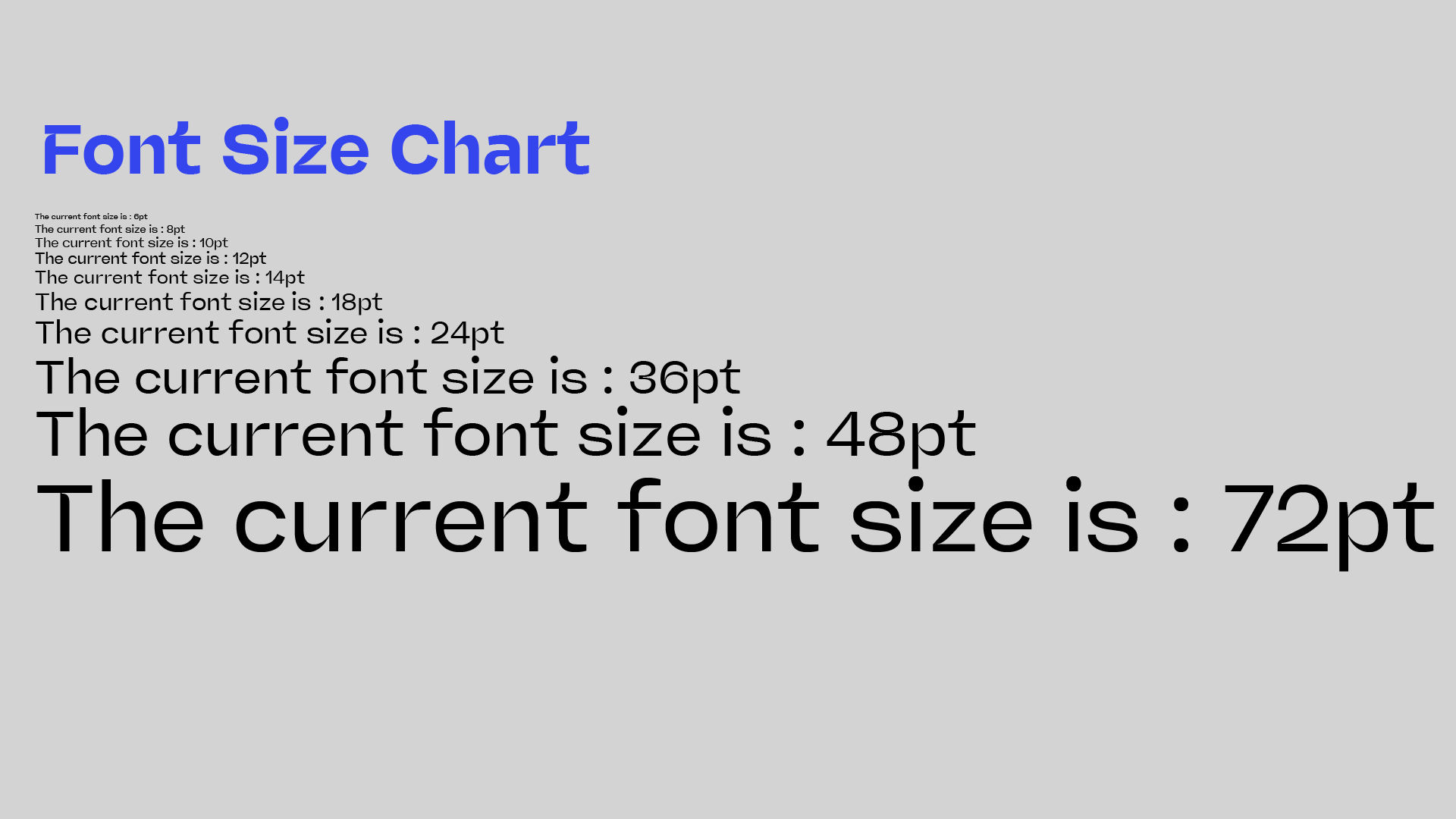
Start by creating a sample text block using your font in multiple point sizes. A standard range includes:
6pt, 8pt, 10pt, 12pt, 14pt, 18pt, 24pt, 36pt, 48pt, 72pt
For body text, test between 8–16pt. For headlines, 24pt and above.
✅ Tip: Use pangrams like “The quick brown fox jumps over the lazy dog” to display a full alphabet.
3. Test in Real Use Cases
Don’t just test on a blank canvas. Place your font into:
- App UIs
- Landing pages
- Print mockups (e.g. brochures, flyers)
- Social media previews
- Dark and light backgrounds
This shows how the font behaves in live environments where lighting, resolution, and contrast affect readability.
4. Evaluate Visual Spacing & Rhythm
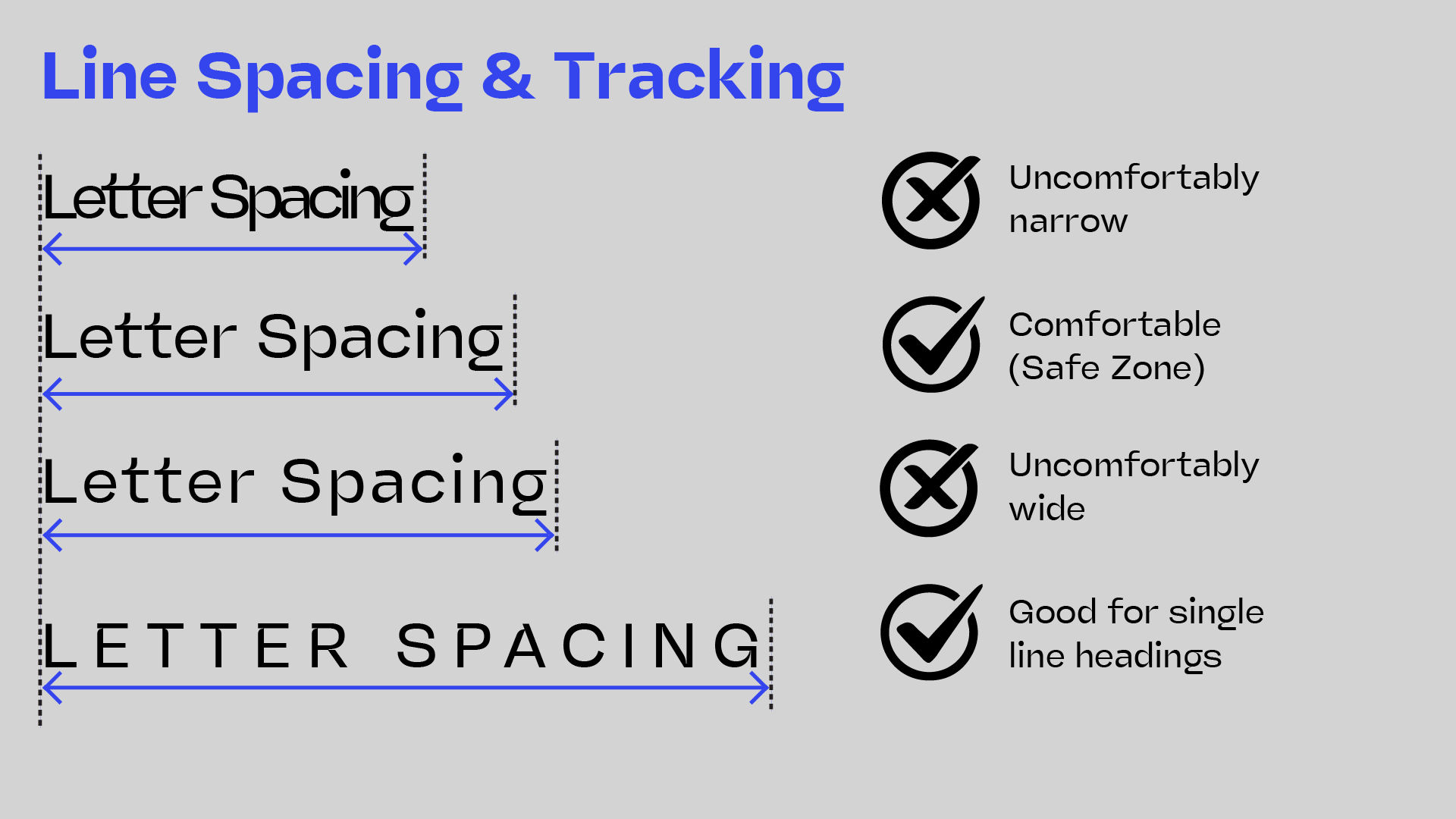
As fonts shrink, letterspacing (tracking) and line-height (leading) become more critical. Ask:
- Are the letters still distinguishable at 8–10pt?
- Is the line spacing too tight or too loose?
- Are any characters (like “i”, “l”, or “1”) too similar?
Adjust spacing settings if needed.
5. Get Feedback from Users

Gather input from multiple people:
- Designers for visual integrity
- Non-designers for real-world reading comfort
- Accessibility experts, if possible
You can also use tools like Google Fonts Preview, Fontjoy, or Typetester for browser-based legibility simulations.
6. Test Across Devices & Resolutions
A font may appear perfect on your MacBook Retina display — but try testing it on:
- Low-resolution screens
- Android vs iOS devices
- E-ink readers
- Projector or screen share (for presentations)
Your goal is consistency and legibility everywhere.
7. Use Specialized Readability Tools
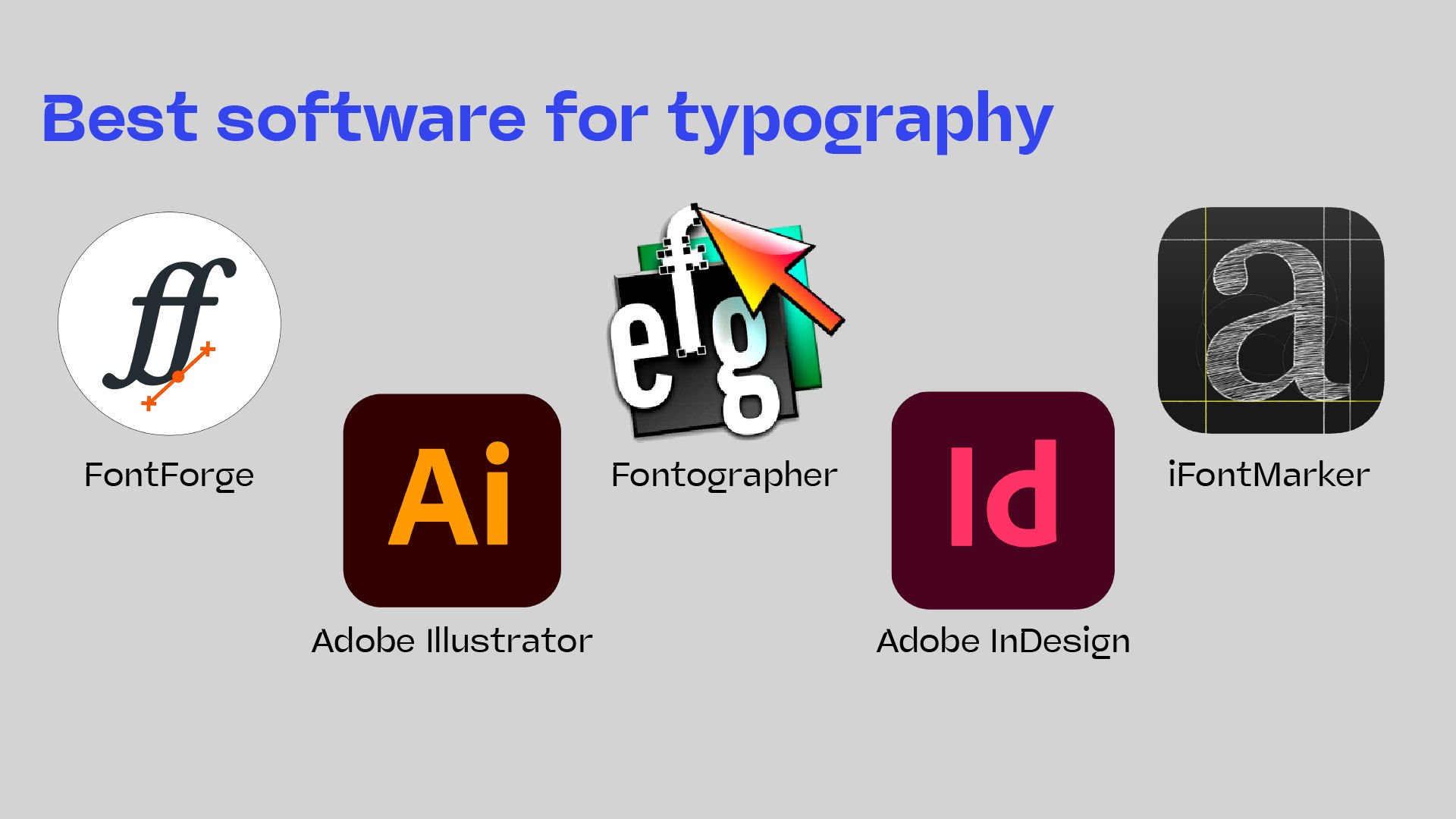
Some helpful tools for automated testing:
- Color Contrast Analyzer (by TPGi) – tests text/background contrast
- Readability Test Tool (by WebFX) – grades font accessibility
- Adobe Fonts Previewer – try multiple sizes and themes
8. Adjust Font Variants When Necessary
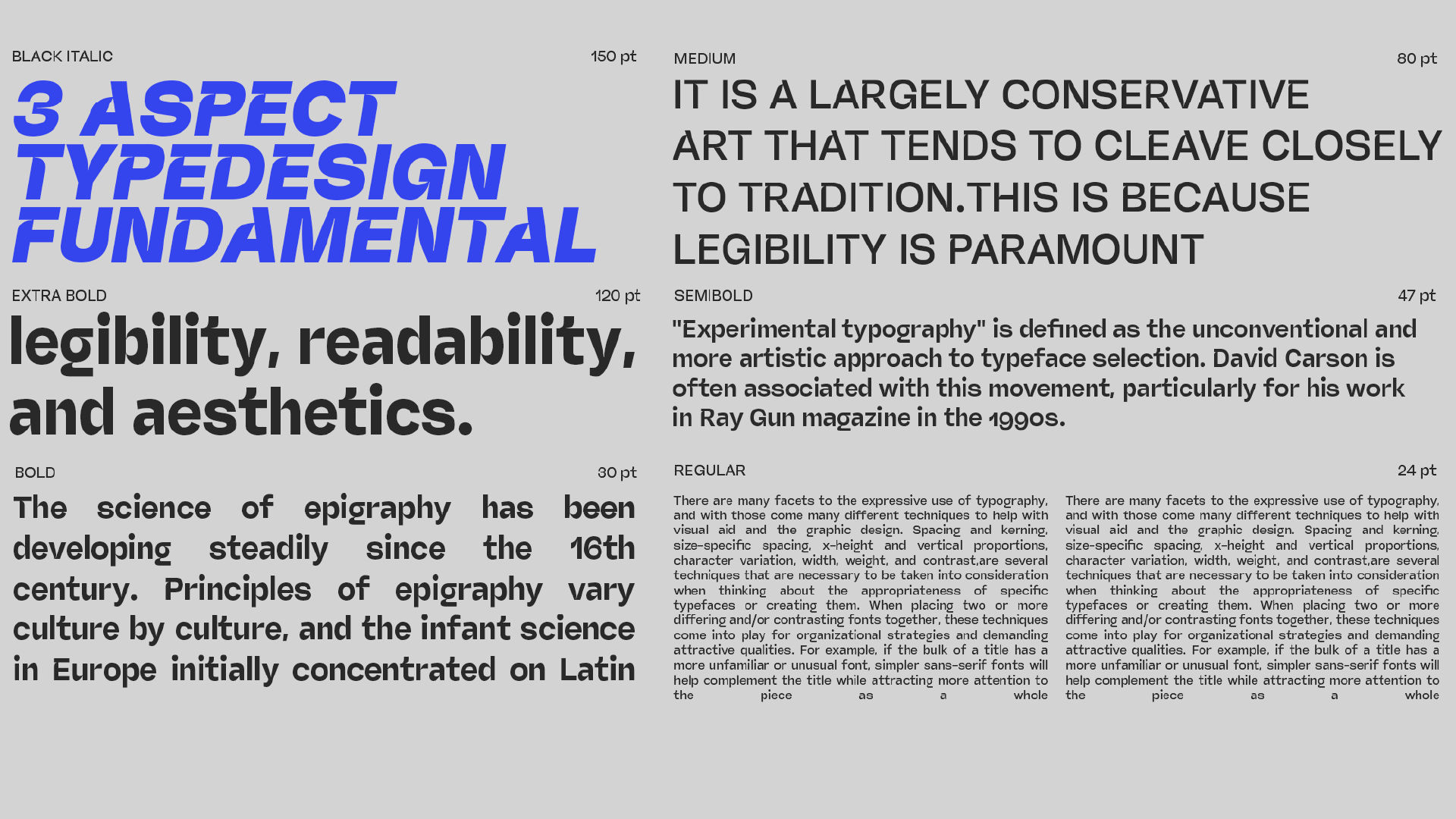
If your font comes with optical sizes (e.g. Display vs Text), use them appropriately.
- Display styles are for large headings
- Text styles are optimized for small reading sizes
Conclusion: Choose With Confidence
Your font may be beautiful, but it also needs to perform. Testing readability at different sizes ensures you’re making smart, user-friendly design choices. By building testing into your process, you’ll not only avoid mistakes — you’ll elevate your typography to professional standards.