
Mastering Complex OpenType Features: Ligatures & Contextual Alternates Made Simple
Mastering Complex OpenType Features: Ligatures & Contextual Alternates Made Simple
Typography is more than just picking a font — it’s about harnessing every hidden capability it offers. OpenType features are a treasure chest for designers, packed with tools that elevate text from functional to expressive. Among these, ligatures and contextual alternates stand out as powerful features that can transform the reading experience. But when designs get complex, knowing how to control and customize them becomes essential.
In this guide, we’ll break down how these features work, why they matter, and how you can manage them with confidence.
1. Understanding Ligatures
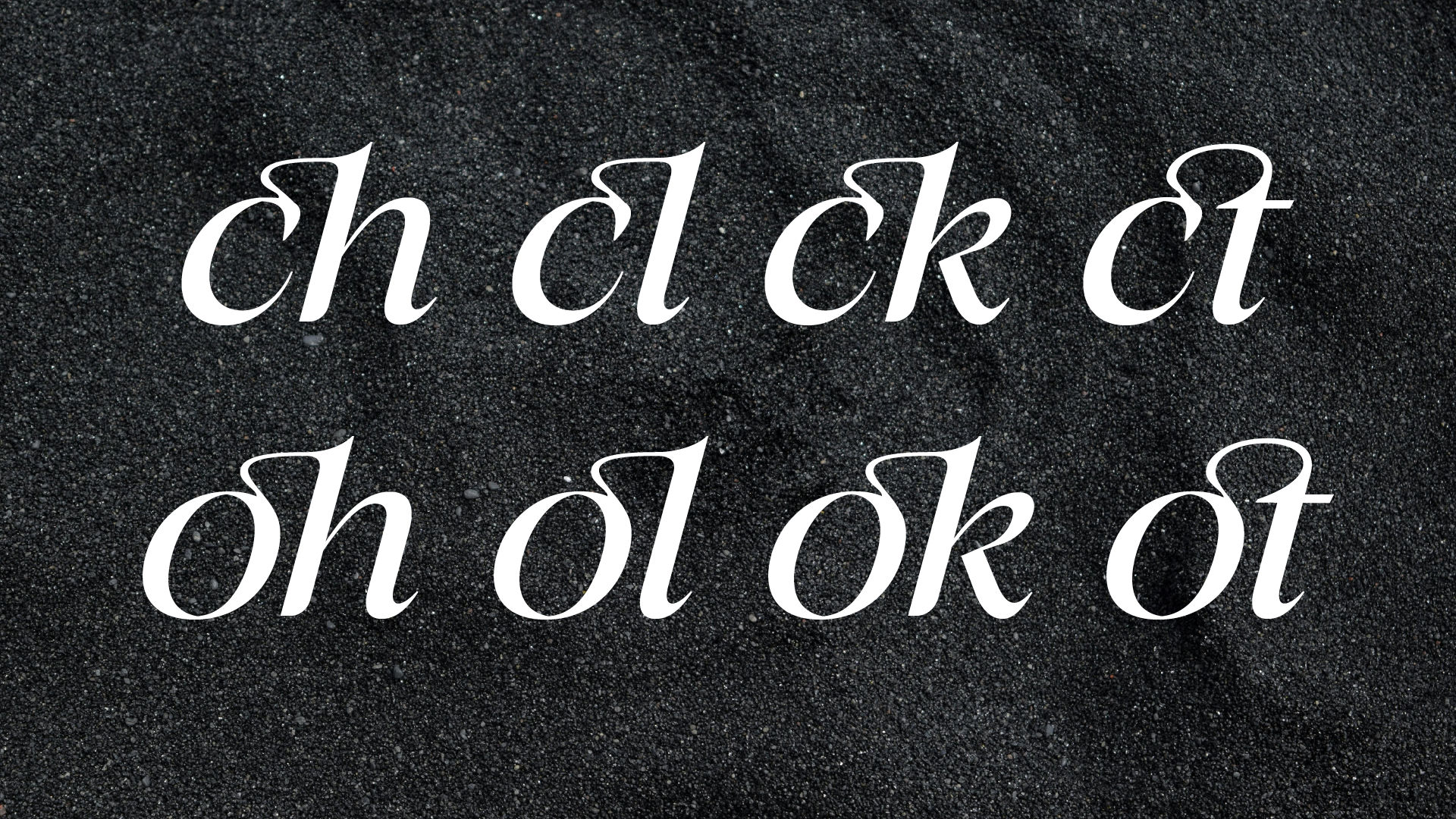
Ligatures are special character combinations where two or more letters merge into a single, aesthetically pleasing glyph. They help:
- Improve readability in certain typefaces.
- Enhance style for display or branding designs.
- Eliminate awkward spacing between specific letter pairs (like fi, fl, ff).
There are two main types:
- Standard Ligatures – Automatically applied to fix visual gaps.
- Discretionary Ligatures – More decorative, often used for stylistic purposes.
Pro Tip: Always check your design’s purpose. While decorative ligatures look great in headlines, they might not be ideal for body text.
2. The Role of Contextual Alternates
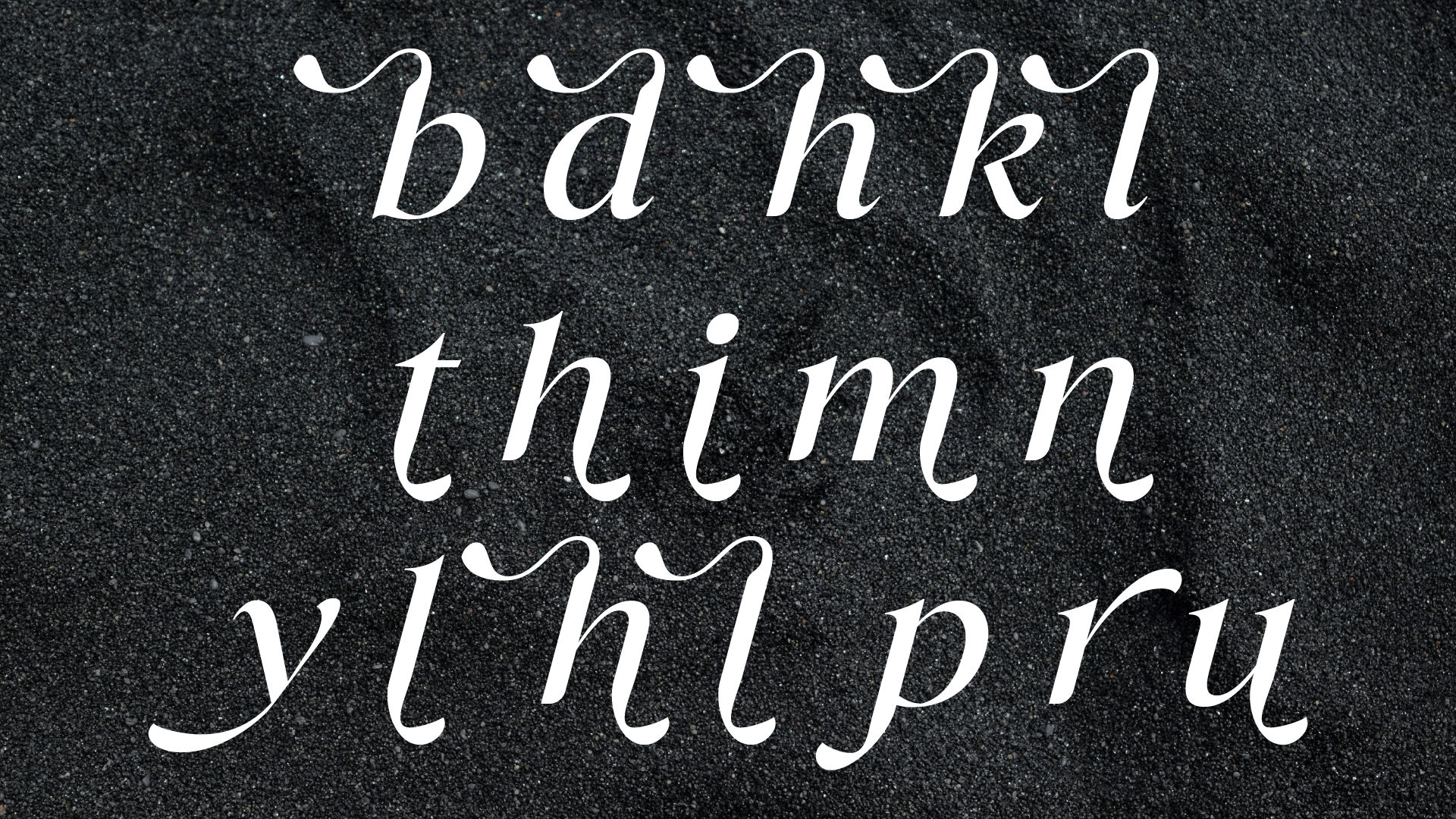
Contextual alternates are alternative letterforms that adapt based on their position in a word or their neighboring characters. For example:
- A script font might connect letters more naturally by changing certain shapes when they appear at the start or end of a word.
- Decorative fonts might use alternate flourishes to maintain balance.
These features bring a more natural, hand-crafted look to text — especially valuable in calligraphy, brush, and script fonts.
3. How to Control These Features in Design Software
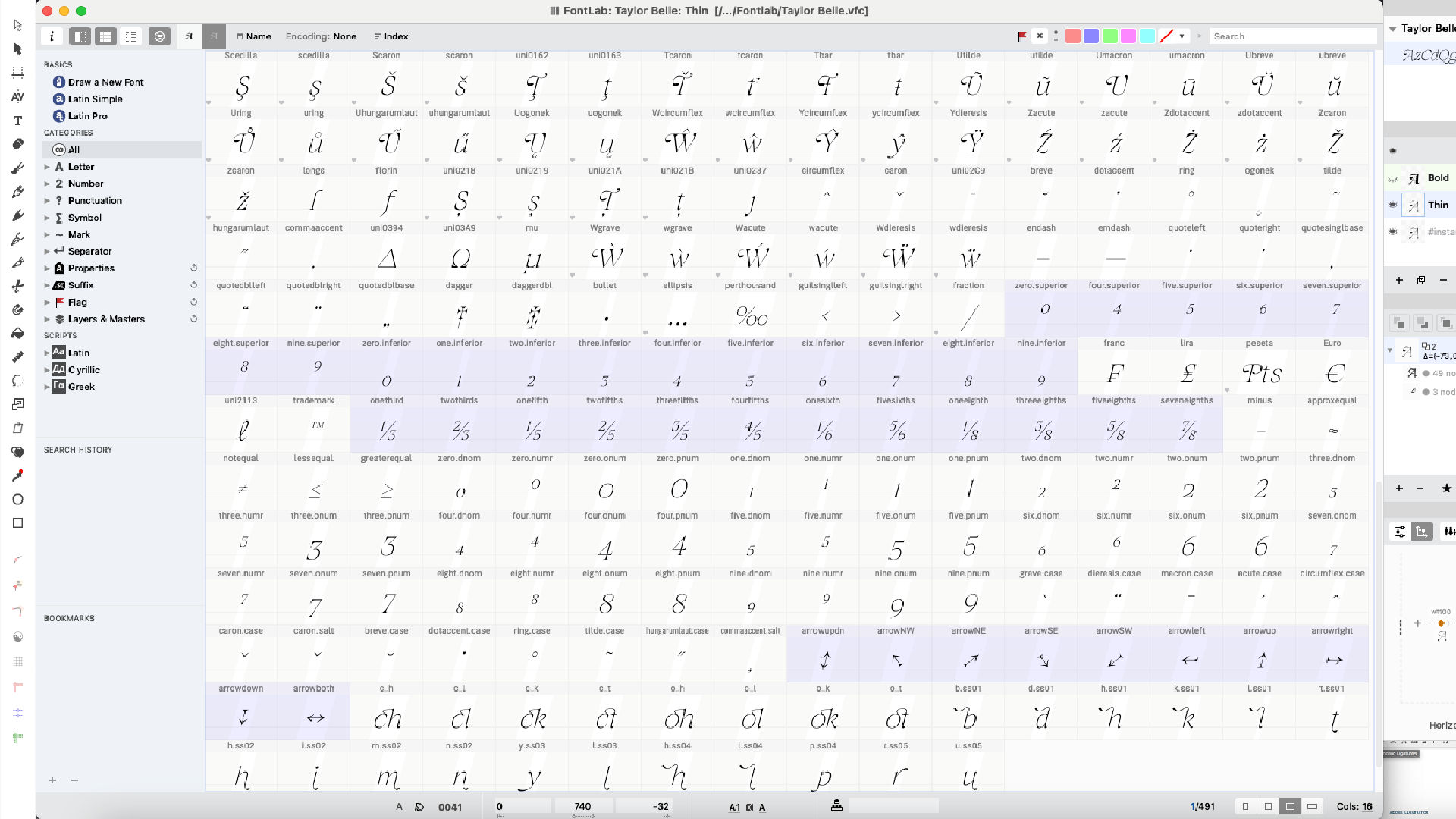
Adobe Illustrator / InDesign / Photoshop
- Select the text you want to modify.
- Go to Character Panel → OpenType menu.
- Toggle Ligatures or Contextual Alternates on/off as needed.
Affinity Designer
- Highlight your text.
- Open the Typography Panel.
- Switch specific OpenType features on or off.
Microsoft Word (Yes, it supports OpenType too!)
- Select text.
- Right-click → Font → Advanced tab.
- Enable ligatures and choose style options.
4. When to Use Complex OpenType Features
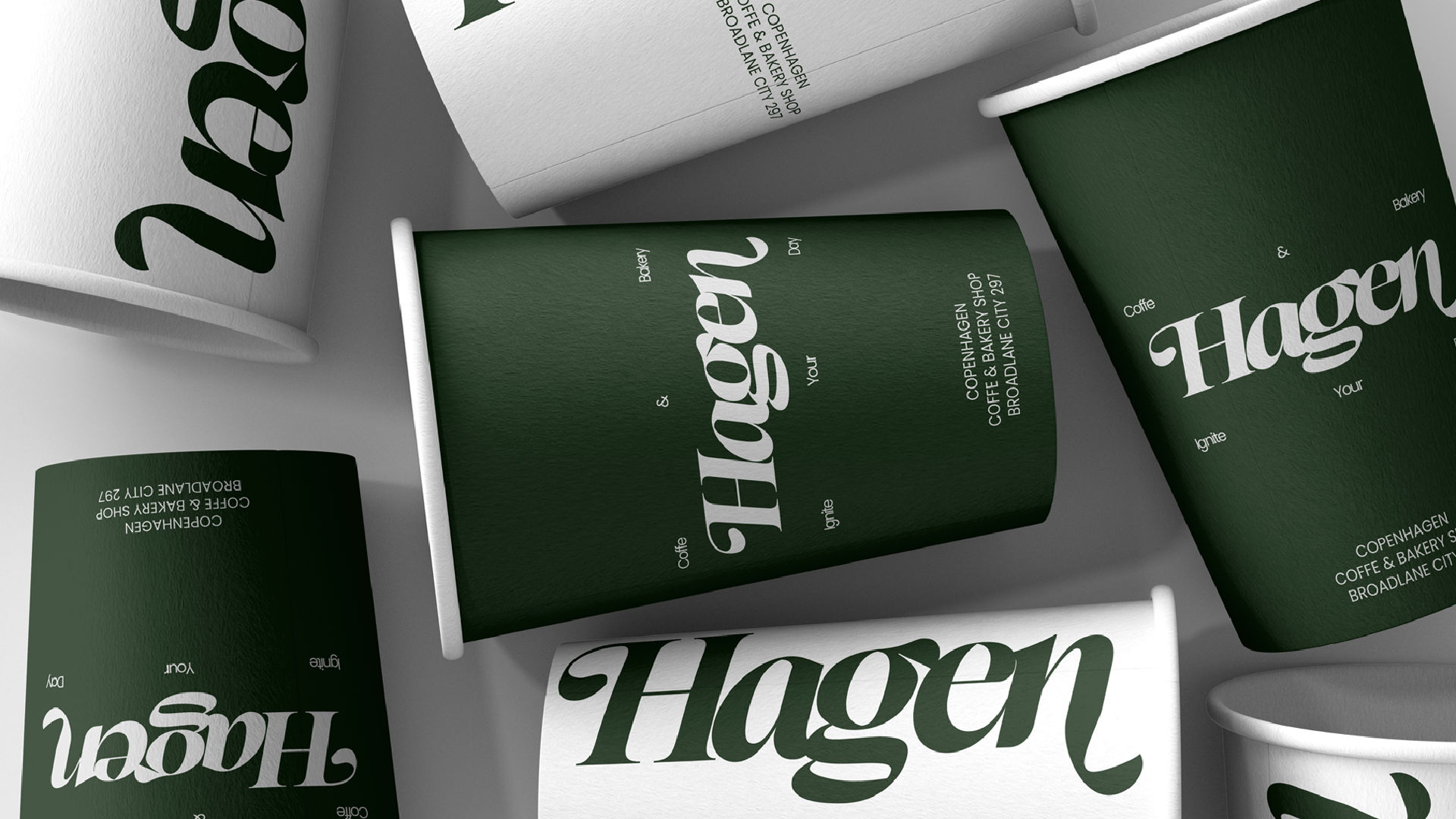
- Branding & Logos – Decorative ligatures can add personality.
- Editorial Design – Contextual alternates keep text visually engaging.
- Packaging – Alternates can make designs look custom-made.
But remember — less is more. Overusing decorative features can make text harder to read.
5. Troubleshooting Common Issues

- Missing Ligatures? Check if your chosen font actually supports them. Not all do.
- Software Limitation? Some programs don’t enable advanced features by default — you might need to toggle them manually.
- Export Problems? When saving as PDF or SVG, ensure “Embed fonts” is selected to preserve features.
Conclusion
Mastering complex OpenType features like ligatures and contextual alternates isn’t just a technical skill — it’s an artistic choice that sets your typography apart. With thoughtful use, you can make your designs more readable, stylish, and truly unique.
So the next time you’re working with a font that offers these gems, don’t let them hide in the background — bring them forward and let them shine.